Execution plan building tests (dot tests)
What is it?
In product catalogue driven order management, the Product Catalogue is the central point, that decides how to fulfill an order. Since it is the single source of truth about what to do with an incoming order (how decompose it so that it can be fulfilled), it contains a lot of data and the modeler (the person who creates the product catalogue) can make mistakes. To avoid it, we introduced the concept of execution plan building tests. Our framework uses DOT graph notation to make it easy to show what an execution plan should look like. In most simple terms, you follow the equation:
planBuilder(incomingOrder, productCatalogue) = executionPlanIn more verbose terms: the plan builder service uses the product catalogue to build the execution plan for a specific incoming order.
Prerequisites
We assume that you have a basic understanding of Serenity BDD (opens in a new tab) and Gherkin language (opens in a new tab). Out tests run on Spring Boot and use JUnit 5. A basic understanding of how a spring boot application is run with specific profiles is also required (you will need to pass some environment variables to the test suite to make it run). We also assume that you have a basic understanding of the product catalogue modelling.
How does it work?
Our test framework uses Serenity BDD. The tests are written in Gherkin language which makes them more human-readable.
In the beginning of the test suite a product catalogue is loaded from folder src/main/resources/excel
Below you will find a simple gherkin feature file with a scenario outline:
@plan_generation
Feature: This is a test of plan generation for orders

  @your_custom_tag
  Scenario Outline: Check plan generation for orders
    Given User sent <order json file> order
    Then I check fulfillment steps order with expected plan <expected plan dot file> for scenario <scenario description>
    @your_another_custom_tag
    Examples:
      | scenario description | order json file             | expected plan dot file      |
      | sample product test  | sample incoming order.json  | expected execution plan.dot |
As you see, in the examples section you can define the order json file that will be read from src/test/resources/json folder and the expected plan dot file that will be read from src/test/resources/dot folder. The scenario description is used to make the test more readable and understandable.
When you run this test suite, what will happen is:
- The product catalogue will be loaded from
src/main/resources/excelfolder. - The order json file will be read from
src/test/resources/ordersfolder and sent to the incoming orders service. - Execution plan will be calculated for the sent order and queried using the SOM system api.
- Next, the expected execution plan dot file will be read from
src/test/resources/dotfolder and compared to the execution plan that was calculated in the previous step. - If the execution plan is correct, the test will pass. If not, the test will fail and the differences between the expected and actual execution plan will be shown in the test report.
How the actual execution plan (calculated by the system) and the expected execution plan (defined in the dot file) are compared?
- First we locate nodes of the actual nodes on the expected graph. We do it by comparing the node names and their attributes. Attributes that are taken into account are:
action(one action allowed) andproducts(list of comma separated product names that the execution step affects), other attributes (such as shape) are omitted in comparison. Important: if there are multiple execution steps with the same, you must use the label attribute to distinguish them, otherwise you can just use the node's name. - Next, we compare the edges of the actual graph with the expected graph. If there are no discrepancies, the test passes. In the other case, the test fails and the differences are shown in the test report.
The major advantage is that both graphs are visualized thanks to graphviz library. You can easily see the differences between the actual and expected execution plan. The nodes or/and edges that are problematic are highlighted in red. The test report is generated in the target/site/serenity folder. In the report you will see a list of comparison errors list, .png files depicting actual and expected graphs with error nodes/edges highlighted.
How to create a dot file?
You must create a dot file according to the DOT language specification (https://graphviz.org/doc/info/lang.html (opens in a new tab)) but with some restrictions.
- You cannot use subgraphs because of the way we compare the actual and expected graphs. So you have to express an edge
in this way:
Node1 -> Node2
Node1 -> Node3
instead of:
Node1 -> {Node2 Node3}- If you have multiple execution steps with the same name, use
labelattribute, for example:
ConfNetw1 [label="ConfigureNetwork", action="ADD", products="product1"]
ConfNetw2 [label="ConfigureNetwork", action="ADD", products="product2"]
ConfNetw2 [label="ConfigureNetwork", action="DELETE", products="product2"]
if there is only one "ConfigureNetwork" execution step, you can just use the node's name:
ConfigureNetwork [action="ADD", products="product1"]Real life example
Suppose you are modelling a product catalogue that you know from the product catalogue guide (here is the download link).
You know that the execution plan for the incoming order should look like this:
digraph sample_test {

CreateProductIMS1 [label="CreateProductIMS", products="MobileVoice", action="ADD"];

WaitForMainProductCreation [shape="diamond", label="WaitForMainProductCreation", products="MobileVoice,SIMCard,ESIMCard,Mobile,Package", action="ADD"];

CreateProductIMS2 [label="CreateProductIMS", products="Mobile", action="ADD"];
CreateProductIMS3 [label="CreateProductIMS", products="ESIMCard", action="ADD"];
CreateProductIMS4 [label="CreateProductIMS", products="SIMCard", action="ADD"];
CreateProductIMS5 [label="CreateProductIMS", products="Package", action="ADD"];

ActivateNetworkNS [products="Package,SIMCard,ESIMCard,MobileVoice", action="ADD"];

ManageDeliveryDS [products="Mobile,SIMCard", action="ADD"];

ManagePaymentBS [products="MobileVoice,ESIMCard,SIMCard", action="ADD"];

WaitForPaymentCompletion [shape="diamond", label="WaitForPaymentCompletion", products="MobileVoice,ESIMCard,SIMCard,Mobile,Package", action="ADD"];

UpdateStatusIMS1 [label="UpdateStatusIMS", products="MobileVoice", action="ADD"];
UpdateStatusIMS2 [label="UpdateStatusIMS", products="ESIMCard", action="ADD"];
UpdateStatusIMS3 [label="UpdateStatusIMS", products="SIMCard", action="ADD"];
UpdateStatusIMS4 [label="UpdateStatusIMS", products="Mobile", action="ADD"];
UpdateStatusIMS5 [label="UpdateStatusIMS", products="Package", action="ADD"];

CreateProductIMS1 -> WaitForMainProductCreation;


WaitForMainProductCreation -> CreateProductIMS2;
WaitForMainProductCreation -> CreateProductIMS3;
WaitForMainProductCreation -> CreateProductIMS4;
WaitForMainProductCreation -> CreateProductIMS5;
WaitForMainProductCreation -> ActivateNetworkNS;

CreateProductIMS2 -> ManageDeliveryDS;
CreateProductIMS3 -> ActivateNetworkNS;
CreateProductIMS4 -> ActivateNetworkNS;
CreateProductIMS5 -> ActivateNetworkNS;

ActivateNetworkNS -> ManageDeliveryDS;

ActivateNetworkNS -> ManagePaymentBS;

ManageDeliveryDS -> ManagePaymentBS;

ManageDeliveryDS -> WaitForPaymentCompletion;
ManagePaymentBS -> WaitForPaymentCompletion;
ActivateNetworkNS -> WaitForPaymentCompletion;

WaitForPaymentCompletion -> UpdateStatusIMS1;

WaitForPaymentCompletion -> UpdateStatusIMS2;
WaitForPaymentCompletion -> UpdateStatusIMS3;
WaitForPaymentCompletion -> UpdateStatusIMS4;
WaitForPaymentCompletion -> UpdateStatusIMS5;

}
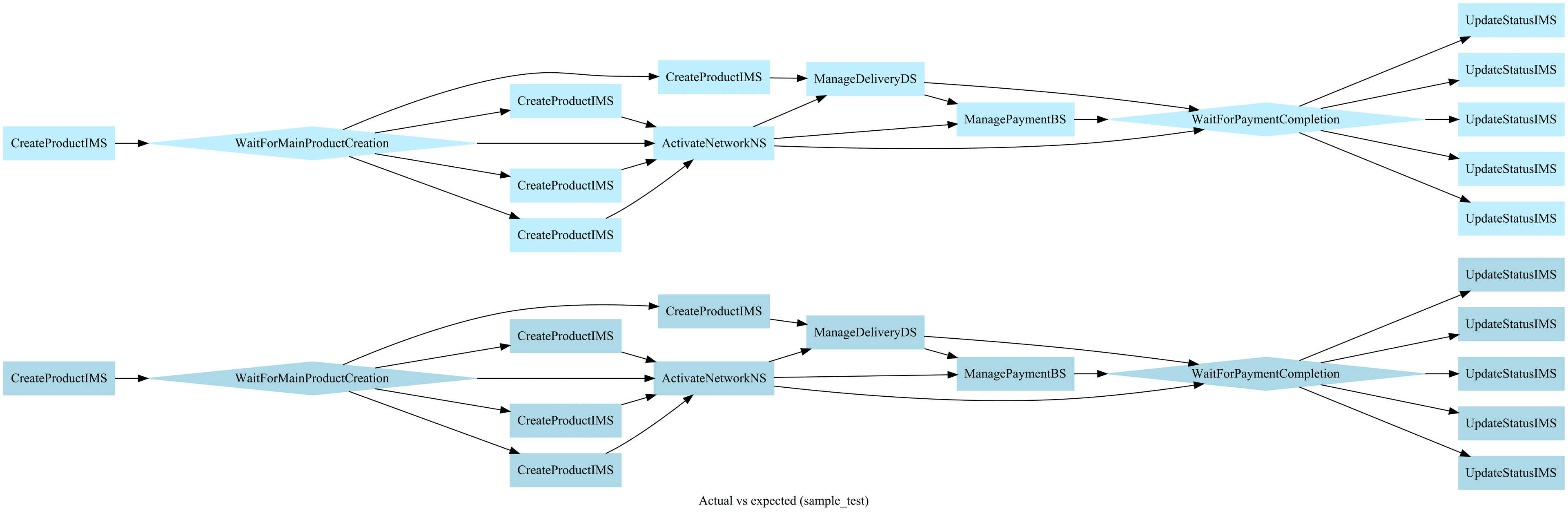
We run the test and... hooray, we passed it 🎉. The actual and expected graphs are the same:
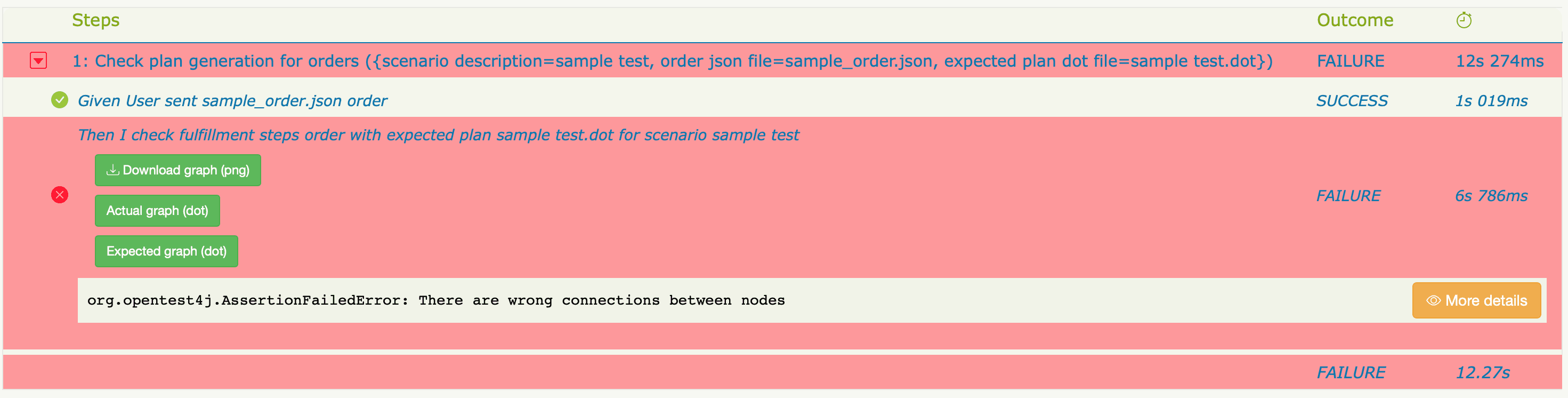
Let's look what happens when we delete this edge: ActivateNetworkNS -> ManagePaymentBS:
As expected, the test failed.
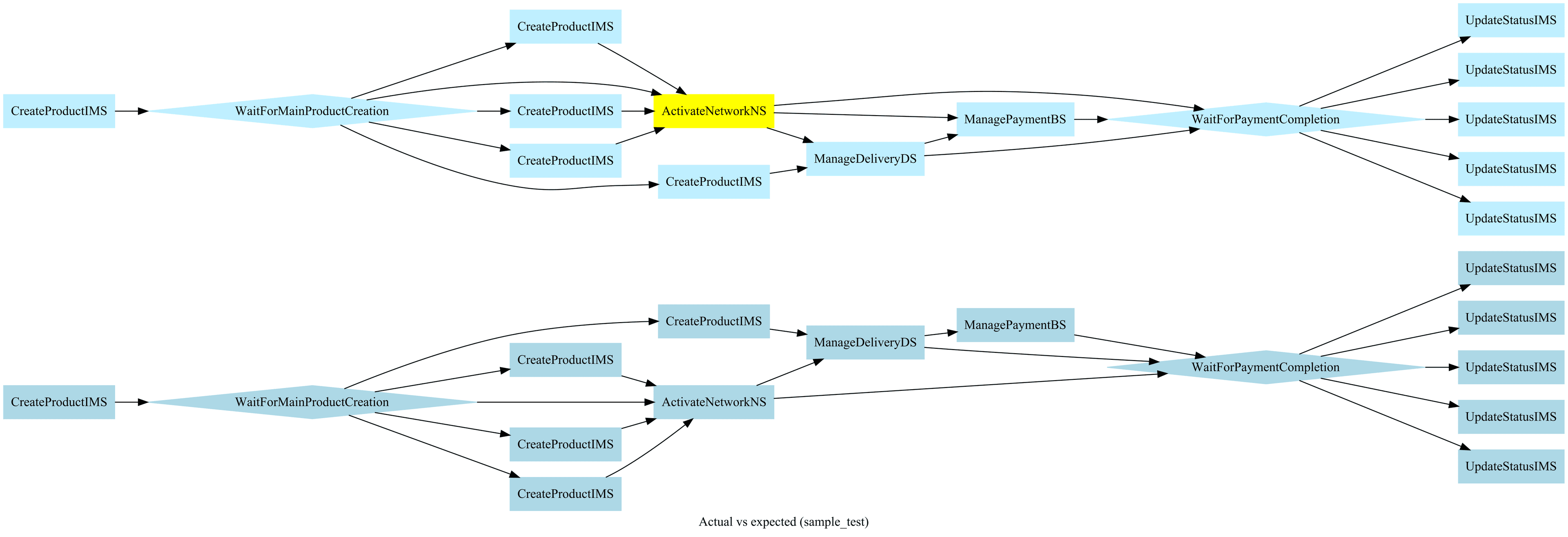
When we open the graph, we can see that it indicated the problematic node in yellow:
Now let's look what happens when we assign wrong products to ActivateNetworkNS node:
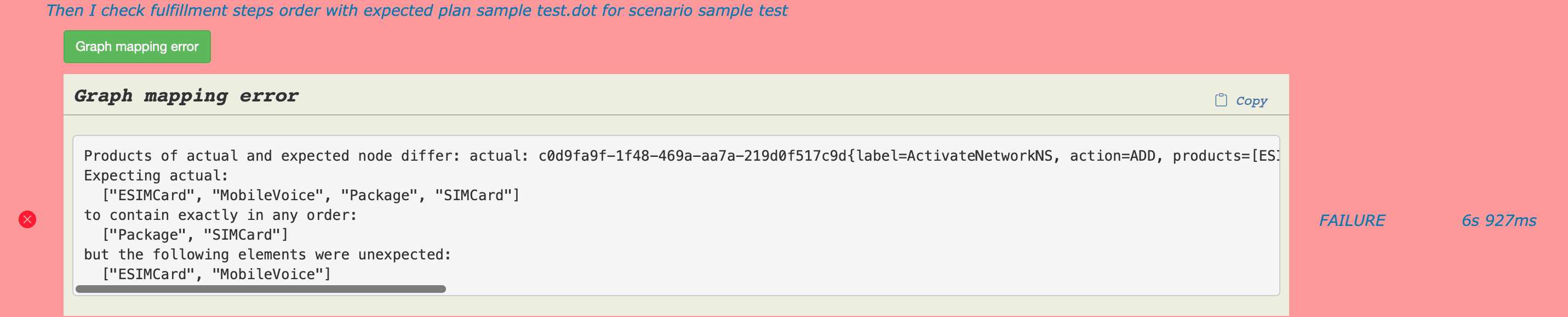
The test indicated problematic products in the error message. It is also showed on the graph:

Recap
If you want to reassure that your product catalogue is correct, execution plan building tests are the perfect solution. They are easy to write and understand thanks to execution plan visualisation. You can easily spot the differences between the actual and expected execution plan while testing the product catalogue against a real-life order.