Product Catalogue Deployment
The Product Catalogue is a critical component of the system, containing the definitions and configurations necessary for processing incoming orders. It determines the precise steps required to fulfill each order. Without the product catalogue, execution plans cannot be generated, and orders cannot be processed.
It is assumed that the product catalogue is prepared in the form of an Excel file.
Import and Deploy Product Catalogue via GUI.
Step-by-step guide to importing and deploying the Product Catalogue
- Go to the Product Catalogue section:

- Click on the Import button:

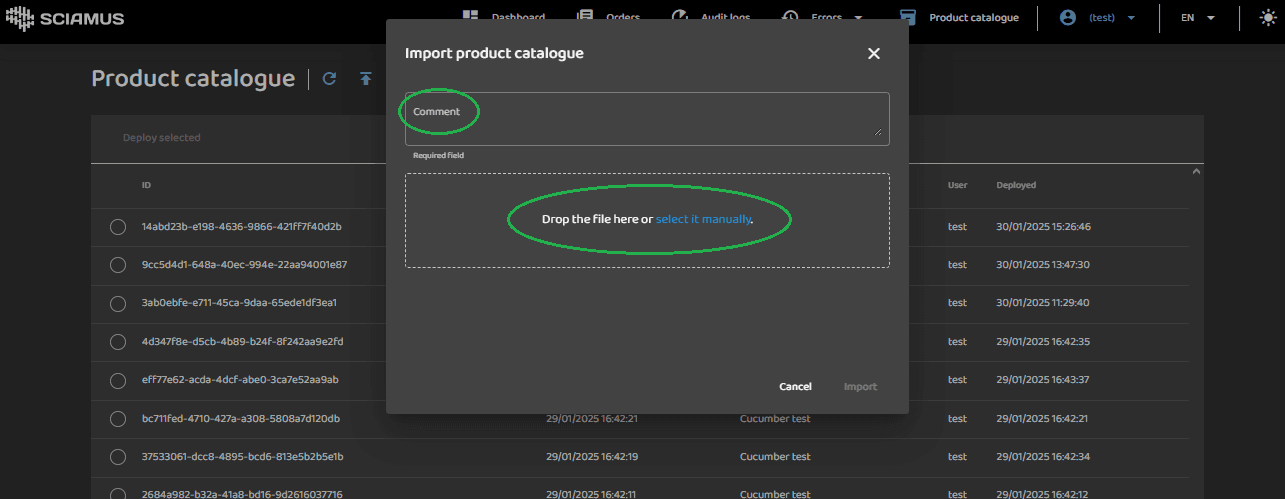
- Next drop your Excel file into the designated area or click on the select it manually field to select the file from your computer. Tip: Add a comment—it will be useful in the future!
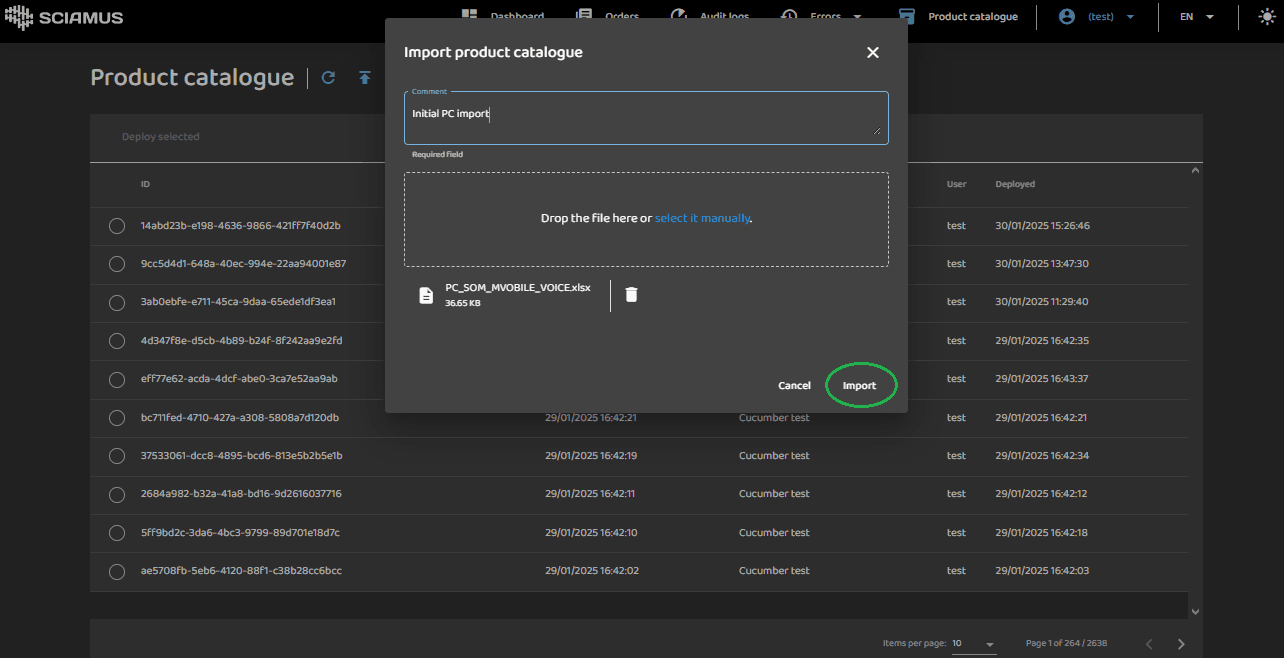
- Click Import and wait for the process to complete:
- If successful, a confirmation message appears.
- If an error occurs, refer to the Product Catalogue Deployment Troubleshooting section.
- Click "Refresh" to verify the result:

- The catalogue has been imported but is not yet deployed (the Deployment Date column is empty):

- To deploy, select the catalogue and click "Deploy selected":

- The catalogue has been successfully deployed:

It's worth mentioning, that the user is also able to download the catalogue that was deployed, as seen below:

Import and Deploy Product Catalogue via REST API
For automated deployments, the Product Catalogue can be imported and deployed via REST API.
Supported formats: Excel (XLSX) and CSV.
Step-by-step guide to importing and deploying the Product Catalogue
Importing the Product Catalogue
- Importing an Excel File
Endpoint:
POST /productCatalogueVersions/importHeaders:
Content-Type: multipart/form-data
Authorization: Bearer <your_token>
Body:
file: The Excel (XLSX) file containing the product catalogue data.
comment: A descriptive comment for future reference.
Example cURL request:
curl -X POST "<host>/productCatalogueVersions/import" \
-H "Authorization: Bearer <your_token>" \
-H "Content-Type: multipart/form-data" \
-F "file=@product_catalog.xlsx" \
-F "comment=Initial product import"
Upon successful import, a confirmation message containing the catalogue ID will be returned:
{
"id": "9cc5d4d1-648a-40ec-994e-22aa94001e87"
}- Importing a CSV file
Endpoint:
POST /productCatalogueVersions/import/csvHeaders:
Content-Type: application/json
Authorization: Bearer <your_token>
Body:
{
"comment": "A descriptive comment for future reference",
"changeLog": "base64_encoded_csv_content",
"executionSteps": "base64_encoded_csv_content",
"executionStepsCompensation": "base64_encoded_csv_content",
"products": "base64_encoded_csv_content",
"productsRelationships": "base64_encoded_csv_content"
}
Example cURL request:
curl -X POST "<host>/productCatalogueVersions/import/csv" \
-H "Authorization: Bearer <your_token>" \
-H "Content-Type: application/json" \
-d '{
"comment": "Initial product import",
"changeLog": "base64_encoded_csv_content",
"executionSteps": "base64_encoded_csv_content",
"executionStepsCompensation": "base64_encoded_csv_content",
"products": "base64_encoded_csv_content",
"productsRelationships": "base64_encoded_csv_content"
}'
For a detailed API specification, refer to the BFF API documentation.
Verifying the Import
To verify the imported product catalogues, retrieve the list of catalogues using the following request:
Endpoint:
GET /productCatalogueVersionsExample cURL request:
curl -X GET "<host>/productCatalogueVersions" \
     -H "Authorization: Bearer <your_token>"
This will return a list of catalogues that are available for deployment or already deployed:
{
  "productCatalogueVersions": [
    {
        "id": "9cc5d4d1-648a-40ec-994e-22aa94001e87",
        "importDate": "2025-01-30T12:45:17.89876011Z",
        "userComment": "Initial product import",
        "user": "test",
        "deployed": null
    }
  ]
}
You can also verify the import via the GUI:

Deploying the Product Catalogue
Use the catalogue ID received from the import step to deploy the catalogue by sending a POST request to the deployment endpoint.
Endpoint:
POST /productCatalogueVersions/{id}/deployHeaders:
Content-Type: application/json
Authorization: Bearer <your_token>
Path Parameter:
id: The ID of the imported catalogue.
Example cURL request:
curl -X POST "<host>/productCatalogueVersions/9cc5d4d1-648a-40ec-994e-22aa94001e87/deploy" \
     -H "Authorization: Bearer <your_token>" \
     -H "Content-Type: application/json"
Upon successful deployment, the API will return a 204 No Content response, indicating that the catalogue has been deployed.
Verifying the Deployment
To verify the deployment, retrieve the list of catalogues and check if the deployed field is populated:
Response:
{
  "productCatalogueVersions": [
    {
        "id": "9cc5d4d1-648a-40ec-994e-22aa94001e87",
        "importDate": "2025-01-30T10:18:40.898142087Z",
        "userComment": "Initial product import",
        "user": "test",
        "deployed": "2025-01-30T12:47:30.517491427Z"
    }
  ]
}
You can also verify it via GUI:

Downloading Product Catalogue
To download product catalogue please use the following endpoint:
GET /productCatalogueVersions/{id}/xlsHeaders:
Authorization: Bearer <your_token>Path Parameter:
id: The ID of the product catalogue version to download
Example cURL request:
curl -location "<host>/productCatalogueVersions/9cc5d4d1-648a-40ec-994e-22aa94001e87/xls" \
     -H "Authorization: Bearer <your_token>" \
Wrap-up
You have successfully imported and deployed the product catalogue.
Key Takeaways:
-
Importing and deploying the product catalogue are two distinct steps.
-
This approach enables flexibility, allowing you to deploy any previously imported catalogue at a later time.