Security roles
Introduction
This guide provides information about access control for Sciamus Catalogue Driven Order Management system (SCDOM).
Roles
In order to perform action on a system, specific roles need to be granted for a user. Backend will validate OAuth2 token and extract roles from it. Presence of a single role allows performing actions.
Because there are 2 types of users (manual operators and automatic order capture), roles were divided in 2 groups:
User actions
| role name | RO/RW | domain | description (what does this role allow?) |
|---|---|---|---|
| audit_log_query | RO | audit logs | browse audit logs |
| order_query | RO | orders | browse orders |
| cancel_orders_batch | RW | orders | cancel multiple orders in a batch |
| fulfillment_errors_query | RO | fulfillments | browse fulfilment errors |
| update_order_payload | RW | orders | update the payload of an order |
| update_service_order_payload | RW | orders | update the payload of an service order |
| update_order_future_date | RW | orders | update the order future date |
| resume_order | RW | orders | resume order processing |
| pause_order | RW | orders | pause order processing |
| error_action | RW | errors | perform actions on errors |
| product_catalogue_deploy | RW | product catalogue | deploy product catalogue |
| product_catalogue_import | RW | product catalogue | import product catalogue |
| product_catalogue_versions_query | RO | product catalogue | query product catalogue versions |
| product_catalogue_query | RO | product catalogue | export product catalogue file |
| rerun_execution_plan_step | RW | fulfillments | rerun a step in the execution plan |
| force_finish_execution_plan_step | RW | fulfillments | force finish a step in the execution plan |
| force_execution_step_into_error | RW | fulfillments | force a step into error in the execution plan |
| user_query | RO | errors | query user list |
| assign_user_to_error | RW | errors | assign a user to an error |
| rule_query | RO | errors | query rules |
| rule_evaluate | RO | errors | test expresstion on error context |
| rule_manage | RW | errors | manage rules |
| dynamic_mapper_domains_query | RO | dynamic_mapper | query possible domains |
| dynamic_mapper_set_import | RW | dynamic_mapper | import set to specific domain |
| dynamic_mapper_set_export | RO | dynamic_mapper | export set from specific domain |
| dynamic_mapper_set_copy | RW | dynamic_mapper | copy set inside domain |
| dynamic_mapper_set_deploy | RW | dynamic_mapper | deploy set in domain |
| dynamic_mapper_parameters_query | RO | dynamic_mapper | query parameters from specific set from domain |
| dynamic_mapper_parameter_modify | RW | dynamic_mapper | modify parameters from specific set from domain |
| business_operations_query | RO | business_operations | query possible business operations |
| business_operations_execute | RW | business_operations | execute business operation |
North system actions
| role name | RO/RW | domain | description (what does this role allow?) |
|---|---|---|---|
| orders_upload | RW | orders | upload orders |
| order_query | RO | orders | query orders |
| order_cancel | RW | orders | cancel orders |
| order_alter | RW | orders | alter orders |
How to add roles
SCDOM integrates with Keycloak by default. There are several ways to add a role to a user. We can add a role directly to a user or we can add a user to a group from which they inherit the corresponding roles.
To add a role directly to a user, follow these steps:
-
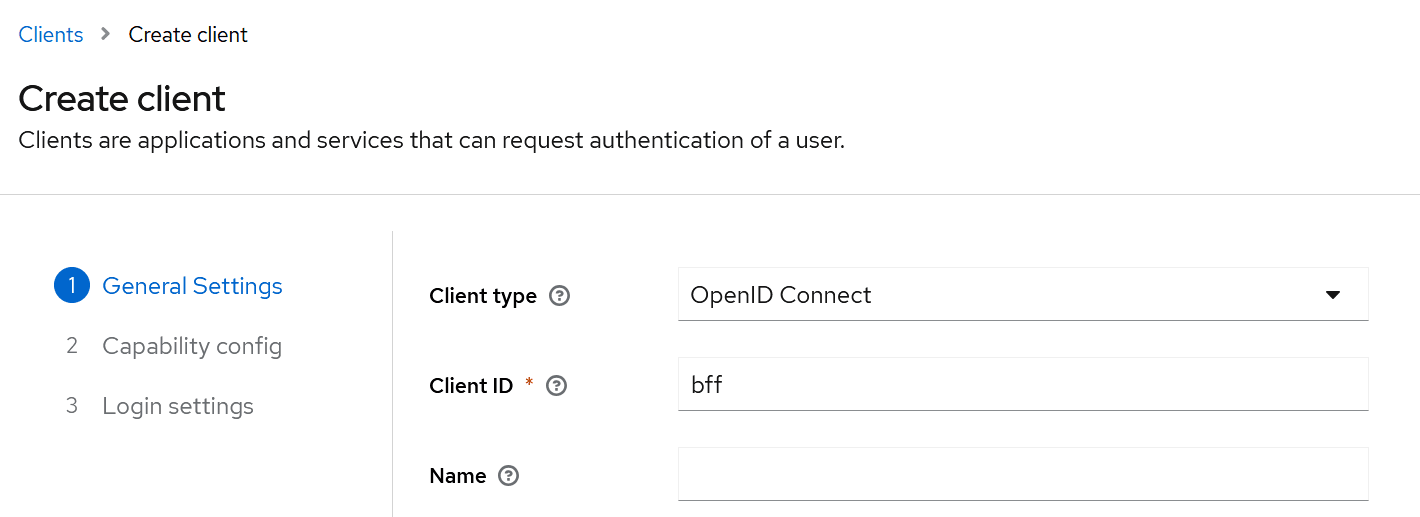
Create a client from the realm level for the example we will call it bff.
-
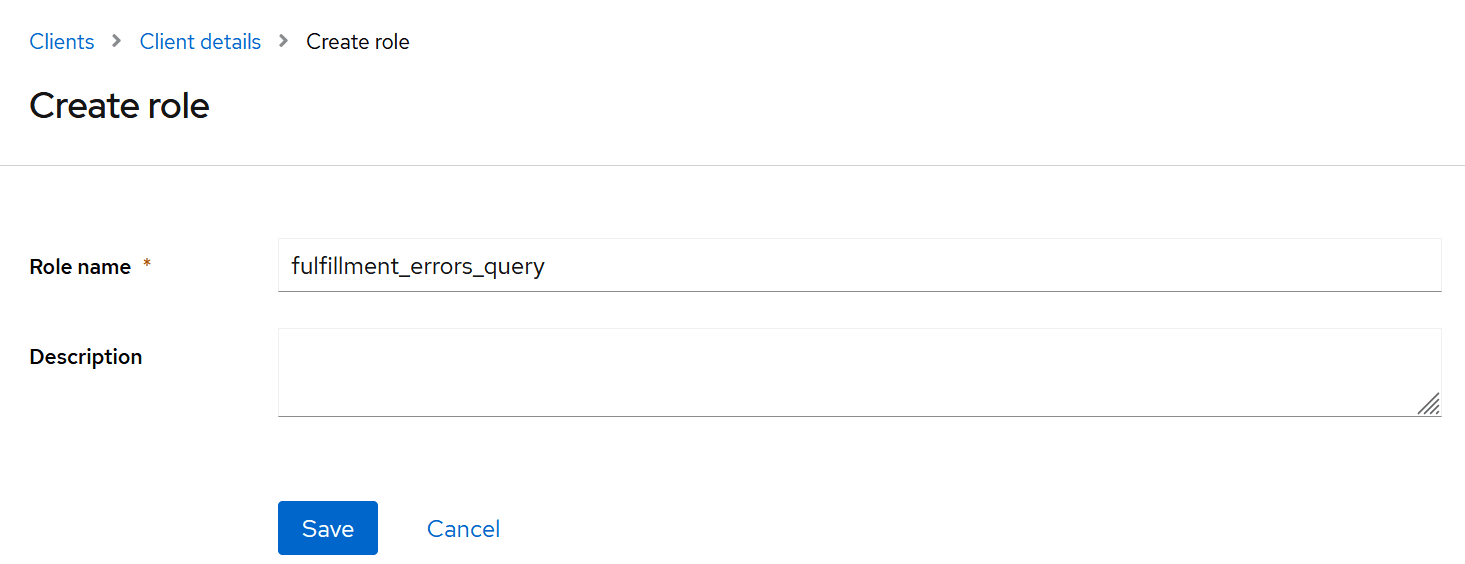
Then, from within the new client, give it the appropriate roles e.g. fulfillment_errors_query
-
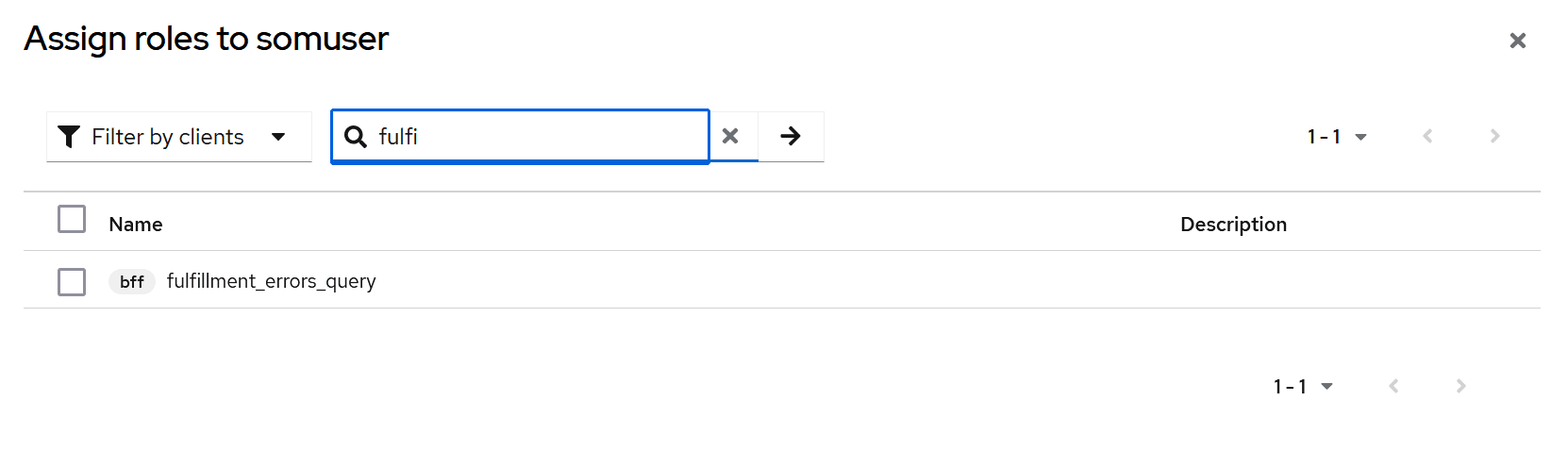
Now you can switch to the user view and go to the roles view

-
From this level, you can assign the role you created earlier
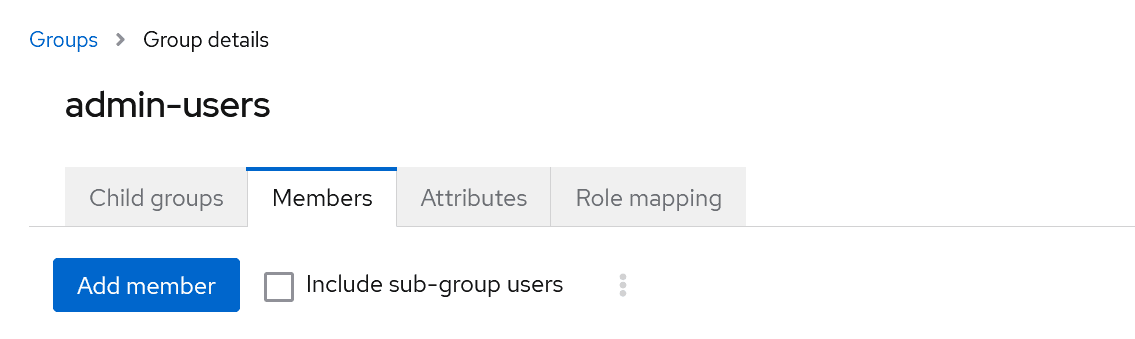
The situation is similar with groups. You just need to add the role to the group not directly to the user.
You then need to assign the user to a particular group.